It’s
very easy to set up an automatic Table of Contents (TOC) in Word 2007 — the
only ‘rule’ is that you must use styles for your headings.
You
can either use Word’s built-in Heading styles or create your own. To get a
hierarchical TOC, make sure you also use hierarchical heading styles for each
topic’s main heading, subheading, and sub-subheadings (e.g. Heading 1, Heading
2, Heading 3).
Step
1: Set up your document
You
need to use hierarchical heading styles for your headings and subheadings.
- Start a new document.
- Press Enter a few times to
create some space for the TOC.
- Add some headings and some text.
- Apply Word’s default Heading 1, 2, and 3 styles to the headings.

Step
2: Insert a default Table of Contents
- Click in the empty space you created at the
beginning of the document.
- Go to the References tab > Table
of Contents group.
- Click the Table of Contents button.

- 4. Select one of Word’s built-in TOCs from the list.

5. Your
Table of Contents is inserted.

Step
3: Update the TOC
After
you add more content to the document or shift content around, you’ll need to
update the TOC to reflect the revised page numbering and the new or deleted
headings. There are several methods you can use to update the TOC — choose the
one that best suits the way you work:
- Click anywhere in the TOC, then press F9.
- Go to the References tab > Table
of Contents group, then click Update
Table.
- Click in the built-in TOC, then click Update
Table (this only works for built-in TOCs, not a TOC you
create yourself).
No
matter which method you use, you’ll be asked if you want to update just the
page numbers only or the entire table. The safest option is Entire Table —
this updates both the page numbers AND adds or removes headings to reflect the
current headings used.

Extras
Insert your own TOC
You
might not like the default TOCs that Word provides, in which case you can
create your own using various settings. For example, you might want to show
one, two or four heading levels, instead of the default three; you might not
want dots for the tab leader; you might not want the page numbers over on the
right, etc. To take advantage of these settings, you’ll need to insert your own
TOC.
- Click in the empty space you created at the
beginning of the document.
- Go to the References tab > Table
of Contents group.
- Click the Table
of Contents button.
- Click Insert Table of Contents.

- 5. Change the settings on the Table of Contents window to suit your style, then click OK.

Modify the TOC styles
If
you don’t like the fonts used in the TOC, or how the heading levels are
indented, you’ll need to modify the styles. You can either do this
through the Styles pane or from the Table of Contents settings (as I describe
below).
- Click anywhere in the TOC, then go to the References tab > Table
of Contents group again.
- Click the Table
of Contents button, then click Insert
Table of Contentsagain.
- Click the Modify button to
change the ‘look and feel’ of the TOC.

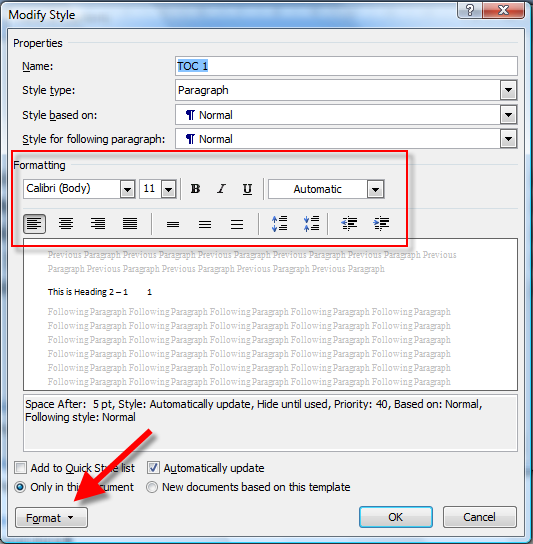
- 4.Select the TOC style (e.g. TOC 1, TOC 2 etc.), then click Modify to change that style’s font, tab indentation, etc.


- 6. Repeat Steps 4 and 5 for each of the other TOC
levels you want to change.
- 7. When you have finished changing the appearance of each TOC level, click OK.
- 8. You will be asked if you want to replace the existing TOC — click OK to do so.

Add or remove a level from the TOC
You
might have appendices or other elements in your document that you want to
include in the TOC, but they use their own heading styles, not the standard
ones. These steps show you how to add or remove a style from the default list
of styles used for the automatic TOC.
- Click anywhere in the TOC, then go to the References tab > Table
of Contents group again.
- Click the Table
of Contents button, then click Insert
Table of Contents again.
- Click the Options button to specify other styles to use to create the auto TOC and the hierarchical level appearance they will take, or to remove styles from the TOC.

- You’ll notice that Headings 1, 2, and 3 already
have 1, 2, and 3 next to them
if you’ve kept the default setting of three levels.
- To add another style to the TOC, find the style
in the list, then type 1, 2, or 3 in its TOC
Level text box (use 1 for a TOC 1
listing,2 for a TOC 2
listing, 3 for a TOC 3
listing).
- To remove a style from the TOC, find the style in
the list, then delete the number from its TOC Level text box. Don’t press
the spacebar — just delete the number.
- Click OK.
- You will be asked if you want to replace the existing TOC — click OK to do so.


thanks bro. I got you
JibuFutaThanx too!!!, No way we can help us but through this blog we CAN because we are very far.
Futa